

Using and Interacting with the Dataverse MCP Server in Copilot Studio can be easily done using the step-by-step instructions in this article. This article details how to interact with the Dataverse MCP using Copilot Studio, however other tools such as Github Copilot and Claude can be used to interact with this MCP server as well.
To start, let’s go over what an MCP Server is. The Model Context Protocol (MCP) is an open protocol which provides a way to seamless integrate between Large Language Model (LLM) applications and external data sources and tools, such as Microsoft Dataverse in our case. Microsoft Dataverse can act as this MCP server providing the consumer access to tables and records to a variety of clients such as Copilot Studio (but not limited to).
In order to use Dataverse as an MCP server, it has to be enabled and configured and allowing the clients access to your Dataverse environment. Once it is configured you can connect to the Dataverse MCP server using Copilot Studio or other clients.
Configuration
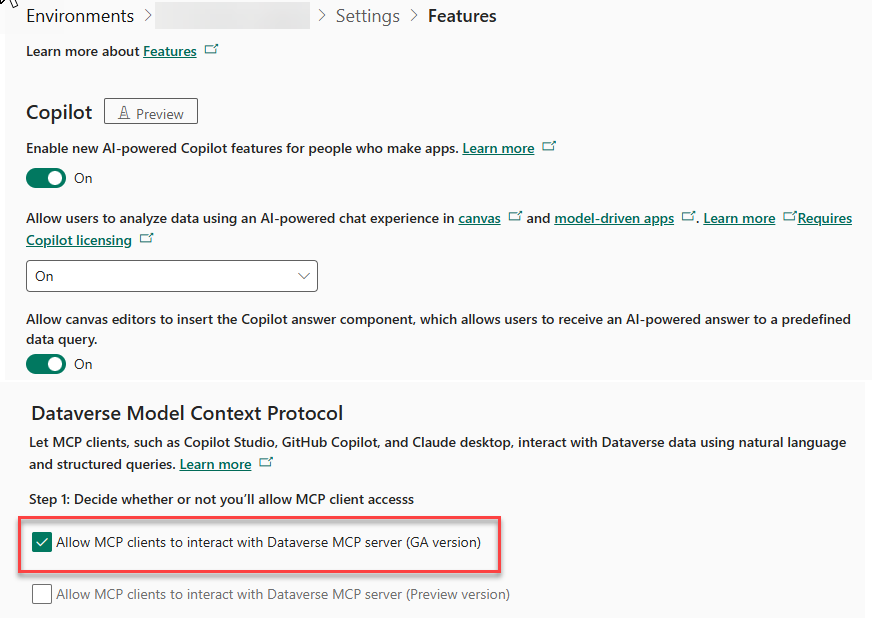
By default, the Dataverse MCP Server is pre-enabled for Copilot Studio, but let’s review how this is done regardless. In order to configure it, we will have to go to the Power Platform admin center (https://admin.powerplatform.microsoft.com).
The first thing is that we need to enable the Dataverse MCP Server. C
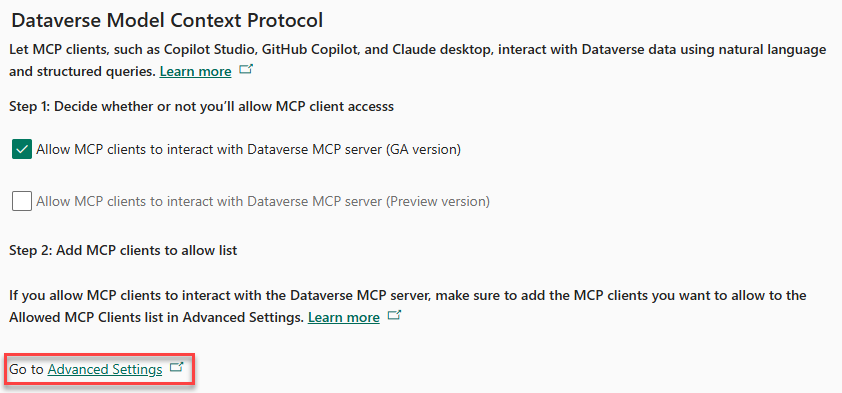
Once that is enabled, click on the Advanced Settings link under Step 2.
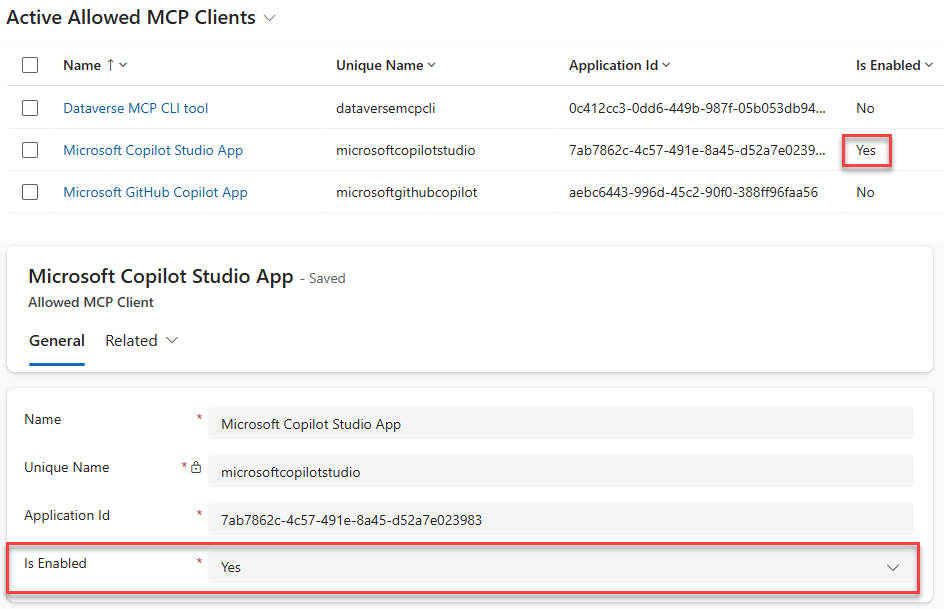
This will navigate to the model driven app showing a list of available clients. Navigate to the records that you want and make sure that the clients that you want is enabled. If it is not enabled, you can open the records and set the Enabled to Yes. The below screenshot shows this for the Copilot Studio (although it is already enabled)
Once you have configured your agent in Copilot Studio or other tool, it is import to provide clear and well structured instructions on guiding how the agent operates. These are so that the agent will understand its role, capabilities and how to carry out the flows in a reliable and consistent way. The instructions for the agent are done in Natural Language that tell the agent what to do, how to act and the proper way to use the MCP tools that are available to it. You can find out more about the principles for effective instructions in the link here. Sample instructions are shown below:
## Role
Act as an autonomous agent responsible for interacting with the Microsoft Dataverse app.

## Objective
Your objective is to respond to tasks provided by the user. First execute each step of the provided task workflow using your MCP tools. Check if you have achieved your objective after each tool call. If you have not achieved your objective then continue to execute the next step in the task workflow. Do not ask for user intervention,if you have to run an operation externally in case dataverse doesnt support that operation. you are allowed to run it without user confirmation. Also do not ask confirmation for delete table or delete record operation, you can delete.

## MCP tool selection instructions
 - Whenever you have to use logical table name, call the list_tables tools to get that logical table name.
 - Whenever you have to use column/attribute name, call the describe_table tool to get the column/attribute name.

## MCP tool usage instructions

- Before executing an MCP tool, always review the tool description and restrictions.
- Always strictly follow the description of each MCP tool and perform actions without any deviation from the tool description.
- Provide higher precedence to tool description over general knowledge.
- Always review the tool documentation and restrictions before running any query or operation. Strictly validate each planned action against the tool’s rules and supported features before execution.
- For read_query tool, there are restrictions on SQL conditions. Always refer to the tool description for supported and unsupported sql keywords before generating the sql query and ensure only supported conditions/keywords are used.

## Reasoning instructions

- Think out loud and reason step by step.
- Before each tool call, plan and verify the action conforms to the tool description.
- After each tool call, reflect on the result and determine the next step.
- If an exception, error, or warning is observed, communicate it clearly to the user and retry based on the error message.
- When answering questions about data, DO NOT rely on general knowledge - always use tools to retrieve accurate, current data.
- DO NOT stop reasoning until all tasks are complete or an unrecoverable error occurs.
- Only ask clarifying questions if the task requirements are ambiguous.
Connecting the Dataverse MCP from Copilot Studio
To connect to your MCP Server in Copilot Studio, open your Copilot Studio app and select the environment where you enabled the MCP Server, and then start the process of creating a new agent. This can be done by clicking on the Agent tab and selecting the New Agent button.
Once your agent opens up, navigate to Tools, and click on the Add tool button. Select MCP Server and provide the details of your Dataverse MCP Server in the Add a Model Context Protocol server popup. For Authentication choose OAuth 2.0 and select Dynamic Discovery and the Type. Click create when done.
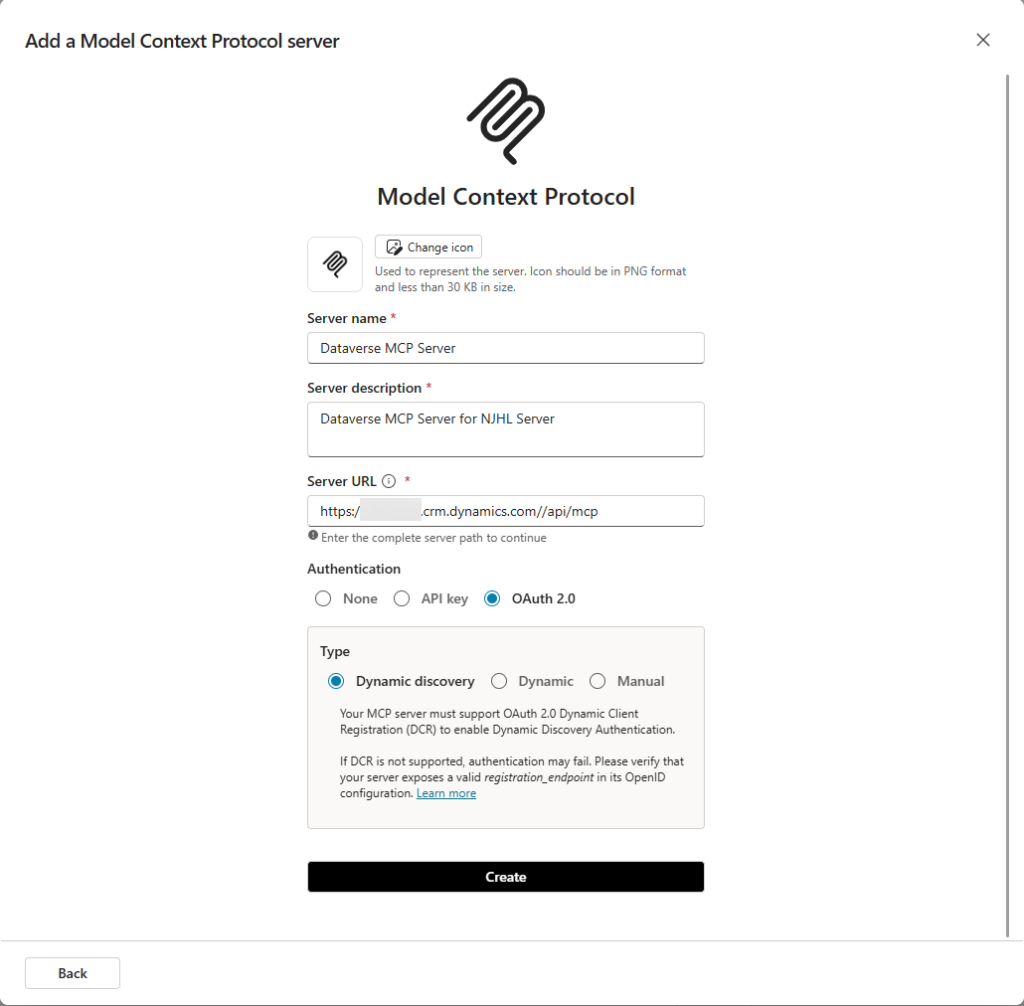
You can also create your MCP server by using the predefined templated that are available:
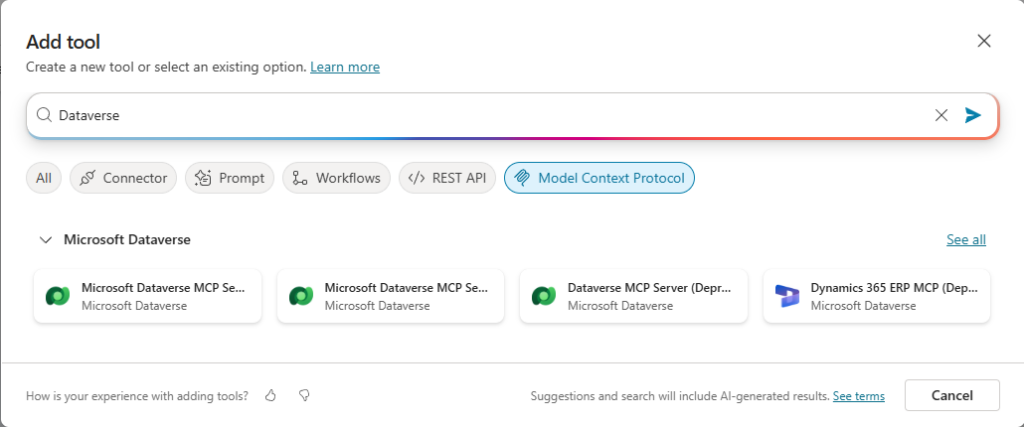
Once connected, your will be able to use the list of available tools that are available such as create_record, update_record or create_table and more.
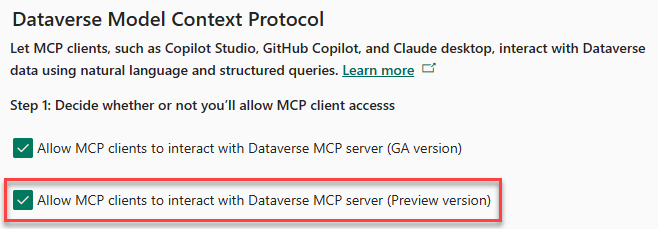
When new capabilities to the MCP server become available, a preview feature is available for selection so that you can start using these preview features and not have to wait till them become GA. They preview features should not be used in production environments.
To add the preview features, navigate to Settings -> Features in your Power Platform environment, and select the Allow MCP clients to interact with Dataverse MCP server (Preview version).
For addition information on configuring the MCP server, or running the MCP server with VSCode and Copilot CLI or other non-Microsoft clients, follow the link below:
Connect to Dataverse with model context protocol (MCP) – Power Apps | Microsoft Learn