

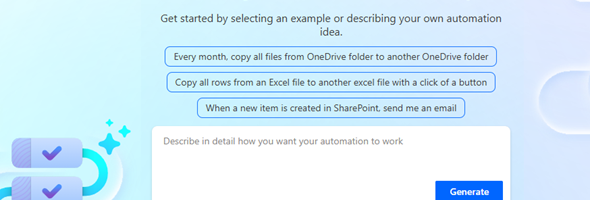
The Power Automate designer had a single User Experience for many years, until about 2 years ago, Microsoft released a new version of the designer with added functionality. You would have to opt in to use the new designer and the flow would allow you to edit it in the Classic or New Interface.
There was also an Edit with new designer button on the flow page that allowed you to Edit the flow in Legacy format or in the new format as well as viewing the flow runs in classic or new designer views.
Let’s take a look at the recap of these two versions. In the original version, actions were added to your cloud flow and all visible on the screen.
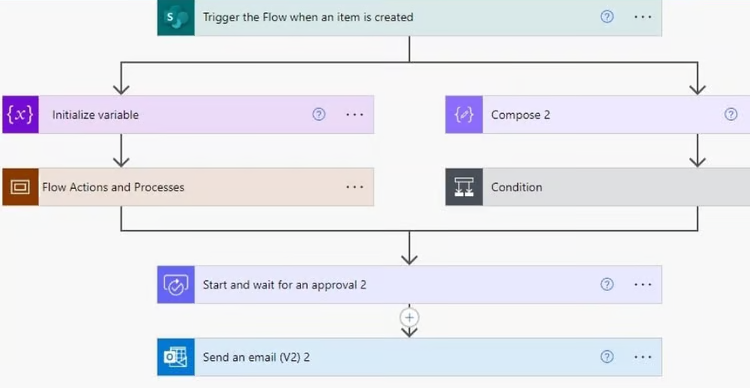
When you expanded a particular action, all the information and about that action would be displayed below as shown in the below image.
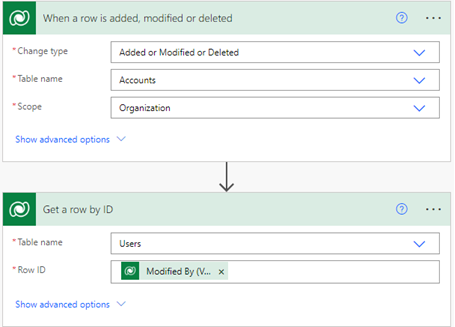
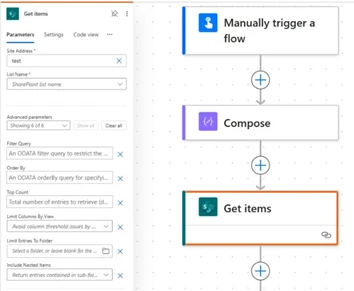
In the next version of the cloud flows, the designer would only show the title of the action or trigger, but when clicked on, it would show all the expanded view in a left side pane with sections such as parameters, settings, code view and about. You will be able to expand and collapse the section and see just the high level design and dive into the details using the side pane.
With the new release that just came out, it seems like the convergence of both has to come to play. First the individual actions are wider, so more text is visible when looking at an individual action. When an individual action is expanded, it will show the parameters right there within the action so that there might not be a required use for the side pane.
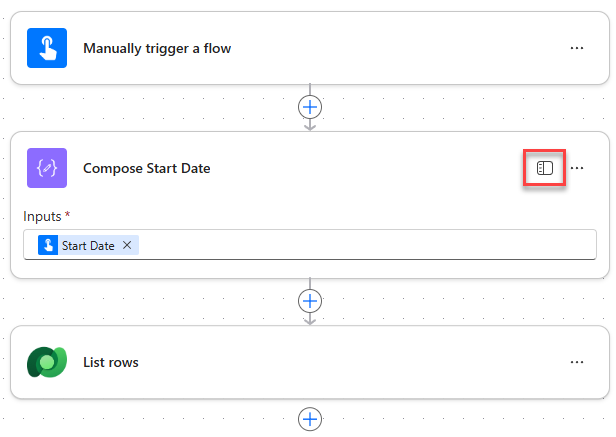
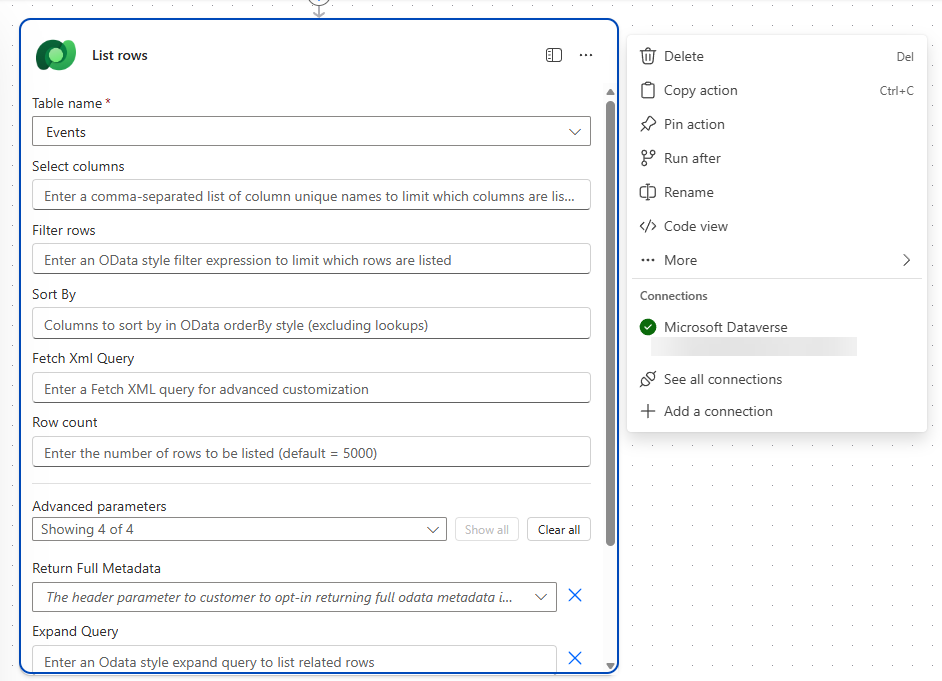
When the List rows is expanded, it will show the Parameters view directly inline, so that you can specify the parameters in the new designer same as you would previously would have done it with the previous version in the side pane. You will see additional actions such as Code view and More which will provide the same functionality that existed with the previous new version in the side pane, but all available inline in the current action/
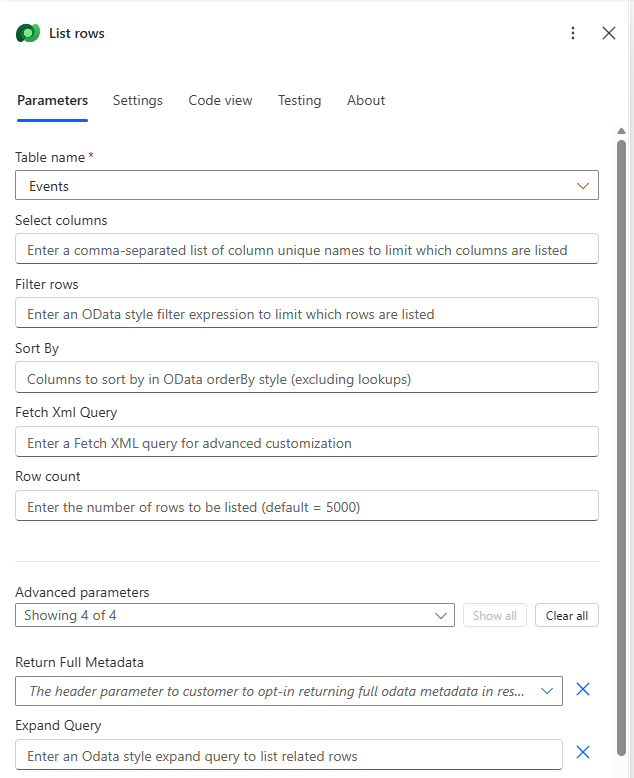
When clicking on the open navigation icon, the left side pane will open up just as it did with the previous version of the designer.
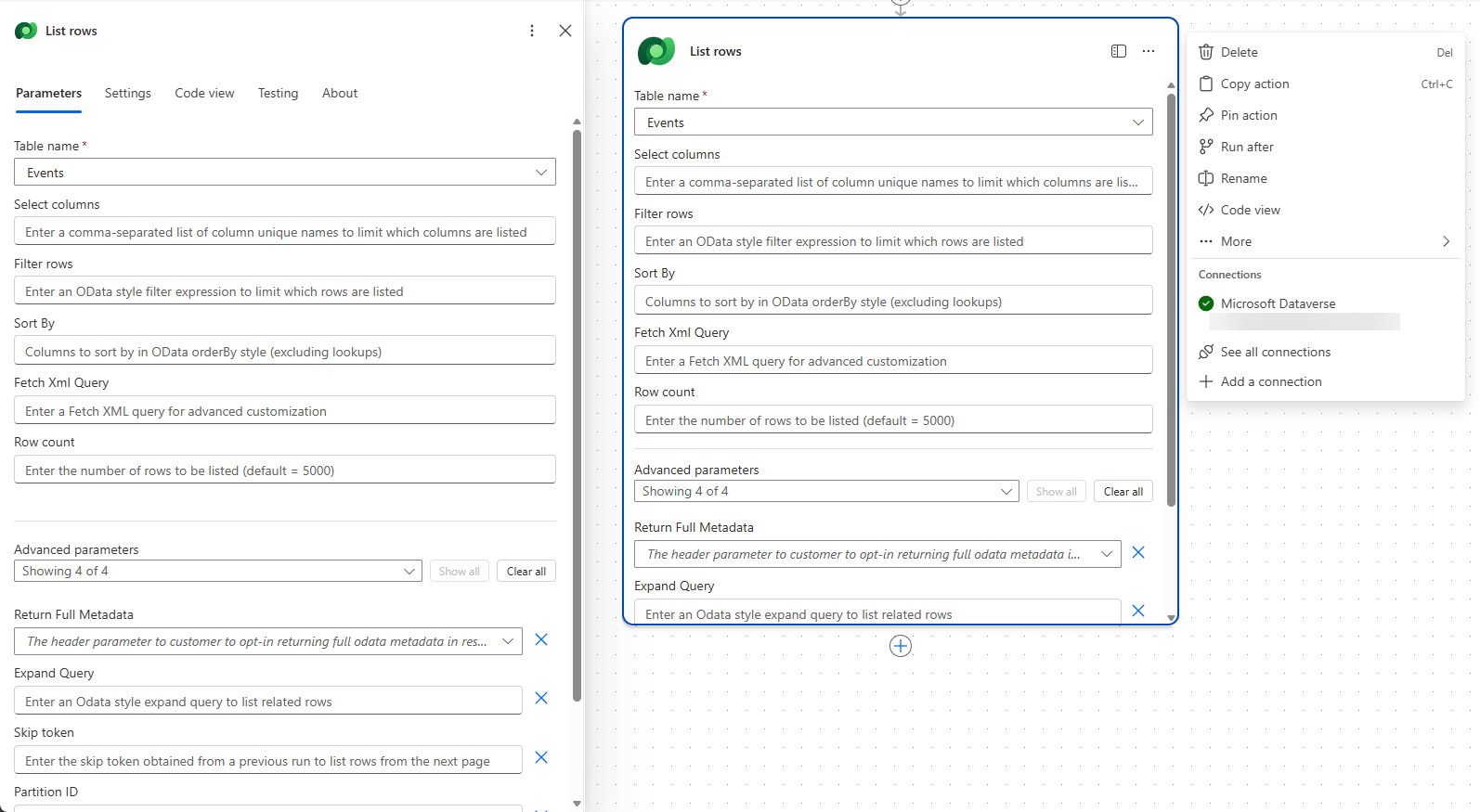
This allows you to use the parameters, settings, code view, testing and about functionality either in the side pane or inline within the actions or triggers themselves. The image below shows you the List rows action both inline and in the side pane with the more actions icon clicked so that it shows you the available actions you can use when working inline.
Seems like this is the best of both worlds, but let’s give it some time to hear the feedback from the community. It seems like this is still in preview as it automatically redirects to the make.preview.powerautomate.com url in the browser.