


Generative Pages have been in Private Preview for a few months now and there is a lot of excitement on this feature. If you have not heard about this feature yet, Generative Pages leverage AI to simplify the creation of pages in model-driven apps.
This is not the same as Custom Pages, but this feature allows users to describe what they want on the page in Natural Language, upload an image of the look of the page and link it to multiple Dataverse tables (if needed). The system will then generate a React-based code page which follows the descriptions entered by the user and can integrate with the data model of the application.
At the time of writing this post, in order to get access to Generative Pages, your environment must be enabled for this feature by Microsoft and the Generative Pages solution needs to be installed in your environment. The latest update to the solution is PowerApps_GenerativePages_v117_managed, which will be provided by Microsoft prior to installation. Once the solution is installed, you will be able to create a new Generative page either by clicking on the + Add Page on the Command Bar, or expanding the Add Page menu item and selecting the Describe a page option as shown in the screenshot below.

Once you click on either of the options above, the Describe a page control will be displayed. You will be able to select one of the default prompts to help you generate your page, or enter your own description in Natural Language in the space provided. You can attach tables and upload the image of how you want your page to look like. The image below shows the Describe your page screen.
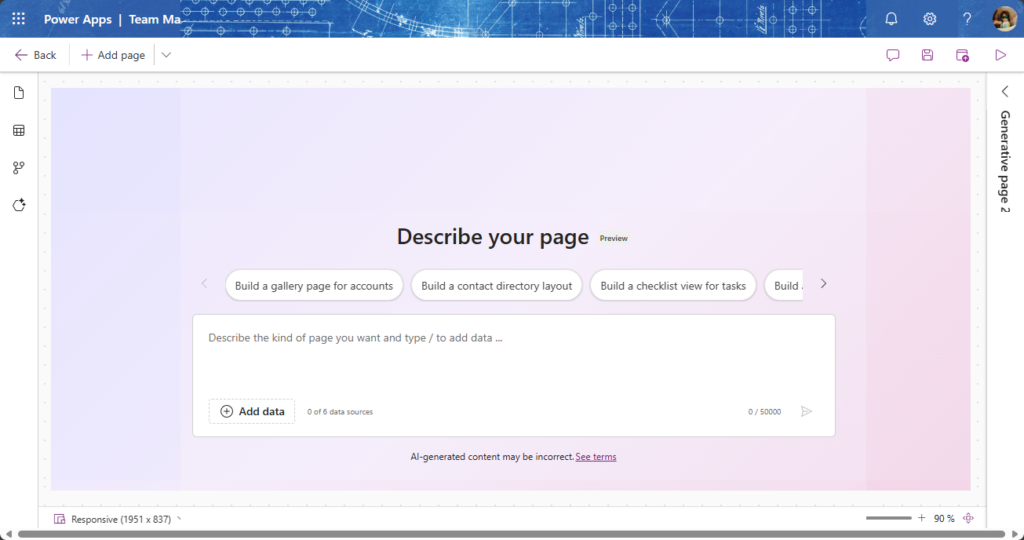
In the describe a page, I entered the following Natural Language description to generate a list of Contacts (Players) from Dataverse with additional information and an option to filter:
Create a clean, responsive, list based contact directory using modern look and feel. Each list item should have with a white background, rounded corners, and a subtle drop shadow. Display the contact's full name on the top with a circular tag under it showing the player number. Below that display the player birth month and year, the player position, USA Registration Number and at the bottom the City and State from the Parent Household table. The USA Hockey Registration Number should mask the first 4 digits. Below, show email and phone with modern icons of the Primary Contact from the Household table. Use consistent spacing and have minimum padding even in reflow scenarios. On hover, list should elevate slightly and show a focus border.

The list should only show Contacts where that Contact Type is Player.

Add a filter to the list based on the Player Team (Owner field)

Clicking a contact opens the Contact record in a new tab using: pagetype=entityrecord&etn=[entityname]&id=[recordid] where entityname is contact and id is contactid. Household
I had to go and do a few more iterations to fix some mistakes and get the results that I wanted, but at the end, the results were as expected. These minor issues included the columns, centering the data, masking the USA Registration Number. Below is the results from the query above.

At the current time, the React code that is being generated by the AI Agent is not editable, which is in the MS backlog. I think that the creation of pages can probably be done almost completely by the AI, and will need a few tweaks that need to be modified by a pro-dev. Looking forward to seeing this in public preview and production as soon as possible and additional features that will be incorporated into this. This functionality can make developing pages in model driven apps a lot easier.
Although this is a simple Generative Page, I created a few more that simplify the process of accessing data. I will share some of those in different posts.